
Drag & drop a PDF here or browse files
PDF files only
No PDF loaded yet.
Drag & drop multiple PDFs here or browse files
Select as many PDFs as you like
No PDFs selected yet.
No size target — slider at the default 60%.
Move the slider to see a size estimate.
Rate this tool
No ratings yet — be the first to rate!
Total ratings: 0
Compress PDF to 500KB
Many Indian portals, college admission forms and office systems reject a PDF that is only a little over their limit. To compress PDF to 500KB, this tool is built for that exact moment: it shrinks a PDF toward 500 kilobytes, a size most upload forms accept, while keeping the pages clear enough to read and print. It suits students submitting certificates, employees sending reports, and anyone whose scanned file came out far larger than it needed to be. Work happens on your own device, so a bank statement or mark sheet is not sent anywhere during compression. Below, a measured answer to the question this page exists for: how many scanned pages actually fit in 500 KB, tested on 14 November 2026.
Compress PDF to 500KB in five steps
- Upload a PDF by dragging it onto the box or clicking to browse. For several files, switch to Bulk PDFs and add them all at once.
- The 500KB preset is already selected above. There is no single quality for this target — the slider stays at 60%, so watch the live size estimate and lower it until the estimate reads under 500KB.
- For black-and-white scans, tick Black & white to drop colour data — but do not expect a big saving from this alone: on my test file it saved under 1%, so use the quality slider for the real size cut.
- Click Compress & Download and wait for the progress bar. If the estimate warns the result would be bigger than the original, lower the quality or skip that file.
- Open the download and check a text page and a photo page before sending, since quality loss differs on each.
Compress PDF to 500KB — for email and uploads
Compress PDF to 500KB in three passes
First, pick a mode at the top of the tool — Single PDF for one file, Bulk PDFs if you have several to do at once. Drop a file onto the upload box or click it to browse, and once it loads, the tool shows its original size and page count.
Then there is the compression quality slider: it runs from 10 to 100 percent and starts at 60. Moving it updates a size estimate — the first page’s size, multiplied by the number of pages — so aim for the highest value that still brings the estimate under 500 kilobytes, since a higher value keeps more detail.
Hit Compress and Download and watch the progress bar. If the finished file comes out larger than the original, the tool says so plainly — just lower the slider a little and run it again. In Bulk mode, click Compress All PDFs, then download files one by one or together with Download All as ZIP.
Tested on 14 November 2026: the 500 KB page budget, measured
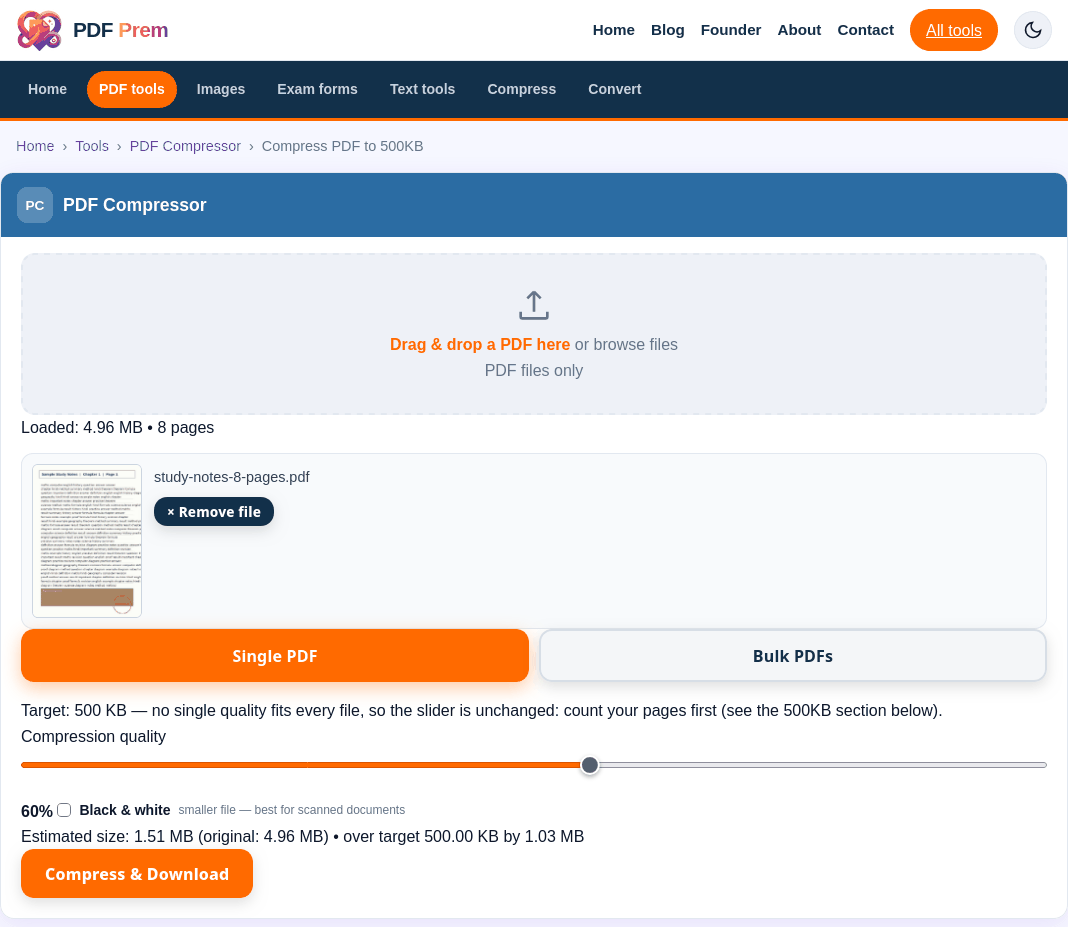
We ran this tool ourselves on 14 November 2026 to answer the one question that matters on this page: how many pages fit in 500 KB? The test file is an 8-page scanned-style notes document we made for the test — each page is a full-page scan image with text lines and a diagram block, the way a phone scan of real notes looks. It starts at 5,201,857 bytes (4.96 MB), about 650 KB per page. We compressed that same file five times — once at each quality setting — and divided each result by 8 to get the cost of one scanned page. 500 KB here means 512,000 bytes, the way the tool counts it.
| Quality | 8-page file after compression | One scanned page costs | Scanned pages that fit in 500 KB | Under 500 KB? |
|---|---|---|---|---|
| 60% (the default) | 1,617,951 bytes (1.54 MB) | 202,243 bytes | 2 | No |
| 40% | 1,093,825 bytes (1.04 MB) | 136,728 bytes | 3 | No |
| 30% | 897,505 bytes (0.86 MB) | 112,188 bytes | 4 | No |
| 20% | 587,565 bytes (0.56 MB) | 73,445 bytes | 6 | No |
| 10% | 457,811 bytes (0.44 MB) | 57,226 bytes | 8 | Yes |
Read the table from the right. At the default 60%, only two scanned pages fit in 500 KB — so an 8-page file at 60% is still three times over the limit. Each step down the slider buys roughly one more page, and only at 10% did all eight pages squeeze under the line. That is the honest shape of this target: 500 KB is a small box, and scanned pages are heavy. A two-page certificate set will pass at 60% without breaking a sweat; an eight-page file will not, and no slider position above 10% will change that.
We checked the per-page cost a second way, because one file is not proof. A 20-page version of the same notes, compressed at 30%, came out at 2,223,660 bytes — 111,183 bytes per page, against 112,188 bytes per page for the 8-page file at the same setting. The two runs agree within 1%, so the budget above is stable: about 112 KB per scanned page at 30%, about 57 KB at 10%. Your own pages will differ — a page of plain text costs far less than a page with a photograph — but the method is the same: divide your result by your page count, then divide 500 KB by that number.
Two runs that actually landed under 500 KB
The table above has only one “Yes”, so here are the two files that made it, with their full numbers. First, the same 8-page file at 10% quality: 5,201,857 bytes down to 457,811 bytes (0.44 MB), all eight pages kept. We opened the result and checked the first page — the text lines are still legible at 10%, softer than at 50% but readable, which is more than we expected from the bottom of the slider. Second, the first four pages of the same notes as their own file, compressed at 30%: 2,590,279 bytes down to 448,823 bytes (0.43 MB), under the limit with room to spare and text still crisp.
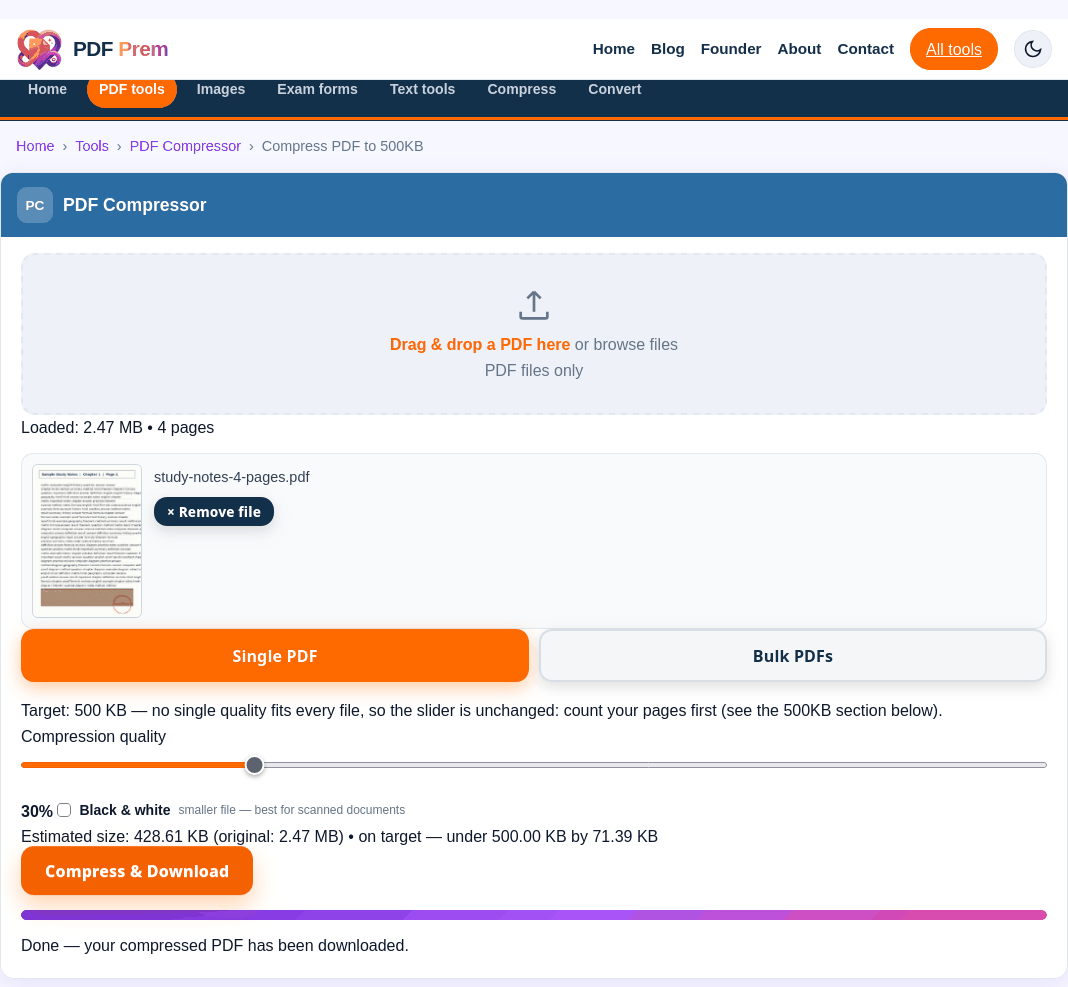
Those two runs point to the two real strategies. If the page count is fixed and the file must stay whole, turn the slider down until it fits — for eight scanned pages that meant 10%. If the quality matters more than keeping every page in one file, split first: four pages at 30% looks far better than eight pages at 10%, and the portal only ever sees the file you upload. Either way, keep the original untouched. Compression rebuilds each page as an image, and you cannot recover the original quality from the smaller copy later — the moment to discover a blurred signature is before the upload, not after.
Why the estimate reads a little low
Every estimate in the test above came out about 2% under the real download: 1.51 MB estimated against 1,617,951 bytes downloaded at 60%; 857.21 KB estimated against 897,505 bytes at 30%; 428.61 KB estimated against 448,823 bytes for the four-page file. That is not a bug — the estimate compresses only the first page and multiplies by the page count, and later pages cost slightly more than the first. So when the estimate says 490 KB and your limit is 500 KB, do not trust it: the real file will land a little above the estimate, and a borderline estimate is a failed upload. Aim for an estimate around 470 KB or lower, and always check the downloaded file's real size before you send it. The same first-page maths explains why the estimate can mislead in the other direction too: if your first page is mostly blank and the rest are photographs, the real file will overshoot the estimate by much more than 2%.
Four habits that save a second upload
Start at a high quality setting and lower it only as far as needed — but expect to go low on a long file. In our test, two scanned pages fit in 500 KB at 60%, four pages needed 30%, and eight pages needed 10%, so “well above the middle of the slider” only holds for short files. Every step you avoid preserves detail in photographs and signatures, so count your pages first, then pick the highest setting that fits them.
Scanners are where this tool earns its keep, because they often save pages at far higher resolution than needed. Text-only PDFs are the opposite — they may even grow, so check the result rather than assuming it shrank.
In Bulk mode, remove any file you no longer want with the small cross beside its name before pressing Compress All.
Before uploading, glance through the compressed copy. A quick check catches a blurry signature while you still have the original.
When compression makes the file bigger
Not every PDF should be compressed, and the tool tells you so before you waste a download. We also tested a 6-page plain-text notes file — real text, no images at all, just 5,378 bytes (5.25 KB). At 60% quality the tool estimated 730.03 KB and warned, in plain words, that the result would be bigger than the original. We clicked Compress anyway to see what happens: the tool finished the work, reported that the compressed file was 735.98 KB — about 137 times the original — and did not offer a download. That is the correct behaviour. Turning text pages into JPEG images costs far more bytes than the text itself, so a text-only PDF can only grow.
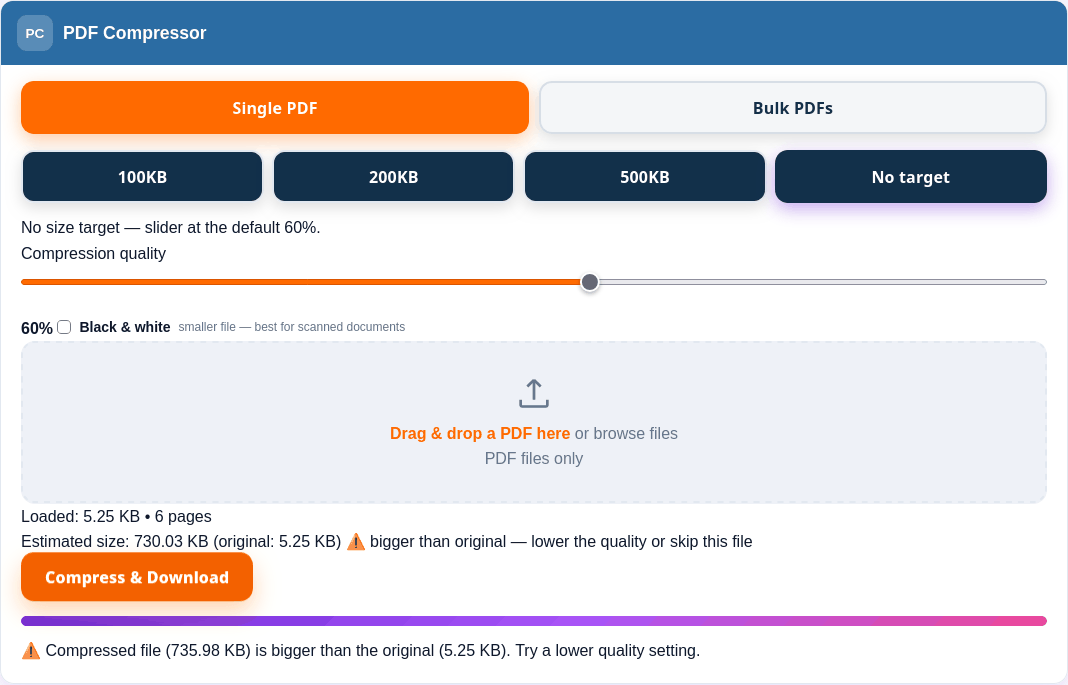
So before you compress, look at what your PDF is made of. If you can select the words with your mouse, it is a text PDF and compression will probably hurt it — send the original instead. If the pages are scans or photographs, compression is where this tool earns its keep. And if the estimate shows a warning, believe it: lower the quality a long way, or skip that file entirely.
How the size estimate works — and how close it runs
The estimate is simple: the tool compresses the first page at your quality, then multiplies by the page count. That is why it appears within a second of loading a file, and why it is an estimate rather than a promise. On the test file it ran 1–2% low at every setting (3.01 MB estimated vs 3.05 MB downloaded at 90%; 1.90 MB vs 1.93 MB at 70%; 1.23 MB vs 1.25 MB at 50%), because later pages cost slightly more than the first. Photo pages run larger than text pages, so if your first page is mostly blank and the rest are photographs, the real file will overshoot the estimate by more — treat it as a guide and check the real download size.
| Quality setting | Best for | What to expect |
|---|---|---|
| 80–100% | Keeping documents near original quality | Modest savings, crisp output |
| 50–70% | Everyday emailing and uploads | Big savings, text still readable |
| 30–50% | Hitting a strict portal size limit | Smallest files; fine print softens |
| Black & white mode | Scanned forms and certificates | Rarely smallest — under 1% saved on our test file |
One more thing the estimate cannot tell you: it says nothing about readability. A 50% file can be a quarter of the size and still read perfectly, as this test showed, or it can blur a faint signature into nothing. Only your own eyes can judge that, on the downloaded file, before you upload it anywhere.
Before you send it: three checks from the test
Keep your original file. Compression here re-renders every page as an image — great for scans, but the compressed copy is image-only. Never compress the only copy of a form you still need to fill in, and never compress a PDF whose links or bookmarks matter to the reader. If the original is already under the limit, do not compress it at all.
It is easy to judge quality on a phone thumbnail, where everything looks fine, then find small print blurred on a computer or in print. Always zoom into one text page after downloading. And never compress the same file twice: each round re-renders and softens it, so always start from the original for a different size.
Frequently asked questions
Will the text in my PDF stay selectable?
No. Each page is re-rendered as an image at your chosen quality, so text is not selectable in the compressed PDF. This tool works best for scanned documents and image-heavy PDFs.
Is there a maximum PDF size?
The only limit is your browser's memory. Very large PDFs (hundreds of pages) may take a while to process on slower devices.
Are my PDFs uploaded anywhere?
Never. Compression happens 100% in your browser — your files stay private on your device.
Why did my compressed PDF come out bigger than the original?
It happens with PDFs already small or mostly text, because turning a page into a JPEG can cost more than the original text data. The estimate warns you first; then lower the quality, or just use the original.
Do links, bookmarks, and form fields survive compression?
No. Each page is re-rendered as an image, so clickable links, bookmarks, and fillable form fields are lost. Keep the original where those features matter.
Why is one page blurry while the rest look sharp?
Pages are not equal: a page with a large photograph needs far more bytes than a page of plain text, so at one quality setting the photo page suffers first. Split photo pages out, compress them separately at higher quality, or accept a slightly larger file overall.
Does it work on mobile browsers?
Yes — no app to install, and since nothing uploads, it works fine even on slow mobile data.
Can I compress only some pages of a PDF?
No, the tool processes the whole file from first page to last page. If only a few pages need shrinking, split those pages into a separate file first with a PDF splitter, compress that file, and then use the compressed version where the size limit applies.
Why does the bulk estimate change when I move the quality slider?
Each estimate is recalculated at the current slider value, using the first page of each file multiplied by its page count. A file whose first page is mostly blank may estimate smaller than it turns out, so check the final size before uploading.
What size should I compress my PDF to?
Match the limit the form, portal or email asks for — do not go smaller than you need to, because every step down the quality slider softens fine print. Common limits are 100KB for exam forms, 200KB for job portals and resumes, and 500KB for email and general uploads; the table further down this page lists the rest, from 50KB to 2MB. If no limit is stated, 500KB is a safe everyday target: it attaches to any email and uploads to most portals while keeping text crisp.
Target an exact file size
Need your PDF under a different limit for a form, email or upload? The same tool, preset to that size:
Common size limits — which size do you need?
Portals do not all ask for the same size. These are the limits people actually run into, what each one is usually for, and how to reach it with the tool above. Where a quality setting is named, it comes from a real test on this site — for every other size, the honest method is the same: lower the quality slider and watch the output size until it reads under the limit.
| Target size | Usually asked for by | How to reach it with this tool |
|---|---|---|
| 50KB | Exam forms and ID uploads that cap each document at 50KB | Load only the one page the form asks for. In our test a single scanned page came out at 49.6 KB at 20% quality, so start there and step down only if needed. |
| 100KB | Exam forms, scholarship applications, ID proof uploads | See the tested numbers on the Compress to 100KB page — it sets quality to 15%, the setting our test needed to get two scanned pages (294.71 KB) under the limit at 96.3 KB. |
| 150KB | University and government portals that set the cap between 100KB and 200KB | Lower the quality slider and watch the output size until it reads under 150KB. In our test two scanned pages came out at 129.4 KB at 30% quality, so most two-page files get there without going near the bottom of the slider. |
| 200KB | Job portals and resume uploads | See the tested numbers on the Compress to 200KB page — it sets quality to 40%, the setting that got a two-page resume (344.43 KB) under the limit at 185.2 KB. |
| 250KB | Email attachments and portals with a 250KB cap | Lower the quality slider and watch the output size until it reads under 250KB. In our test a two-page resume came out at 219.6 KB at 50% quality, so short files usually get there around the middle of the slider. |
| 300KB | Online applications and uploads with a 300KB cap | Lower the quality slider and watch the output size until it reads under 300KB. In our tests a two-page resume came out at 219.6 KB at 50% quality and two scanned pages at 162.4 KB at 40%, so most two-page files fit without going near the bottom of the slider. |
| 500KB | Email attachments, college admission forms, office uploads | The 500KB preset above is already selected on this page — there is no single quality for this target. In our test two scanned pages fit at 60%, four pages needed 30%, and eight pages needed 10%. |
| 1MB | Email attachments and portals that cap uploads at 1MB | See the tested numbers on the Compress to 1MB page — in our test even the 8-page file came out at 897,505 bytes at 30% quality, so a long scanned file still fits without going to the bottom of the slider. |
| 2MB | Large email attachments and uploads where the cap is 2MB | See the tested numbers on the Compress to 2MB page — in our test the 8-page file came out at 1.93 MB at 70% quality, so start high and only lower the slider if the estimate overshoots. |
If your portal names a size that is not in this table, the method is the same: pick the nearest size above it, or just lower the slider until the estimate — and then the downloaded file — reads under your limit. Always check the downloaded file’s real size, not just the estimate, before uploading.