
#3498DBrgb(52, 152, 219)hsl(204, 70%, 53%)Shades
Rate this tool
No ratings yet — be the first to rate!
Total ratings: 0
Free Color Picker
Choosing a colour by eye is easy; naming it exactly for a designer, a printer, or a website is the hard part. This picker shows the same colour three ways at once: HEX for web code and design tools, RGB for its red, green, and blue amounts, and HSL for its hue, saturation, and lightness. Pick a colour, type a HEX code directly, copy any value with one click, or explore the random generator and the shades palette for lighter and darker versions.
How to use the color picker to pick and copy a colour
- Choose a colour with the picker, or type a HEX code directly if you already know it.
- Watch the preview swatch and the HEX, RGB, and HSL values update together as you adjust the colour.
- Click "Copy" next to the value you need, then paste it into your design tool, document, or code.
- Click "Random color" when you need a fresh idea rather than a specific shade.
- Tap any shade below the picker to select a lighter or darker version of the same colour.
Tested: the site’s own four colours, measured
I ran this test with the four colours this site itself uses — navy, blue, orange and green — by typing each HEX code into the “Or type a HEX code” box and reading what the tool showed. Every colour updated the swatch, the picker control and all three value rows together, and none of the four needed a second try. Here are the exact values the tool displayed:
| Colour | HEX typed | RGB shown | HSL shown |
|---|---|---|---|
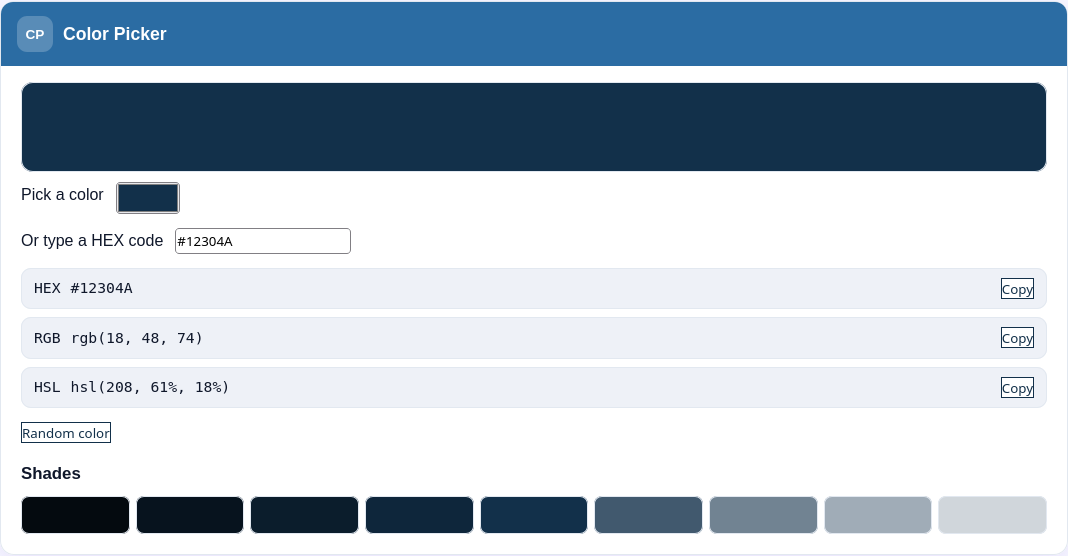
| Navy | #12304A | rgb(18, 48, 74) | hsl(208, 61%, 18%) |
| Blue | #2B6CA3 | rgb(43, 108, 163) | hsl(207, 58%, 40%) |
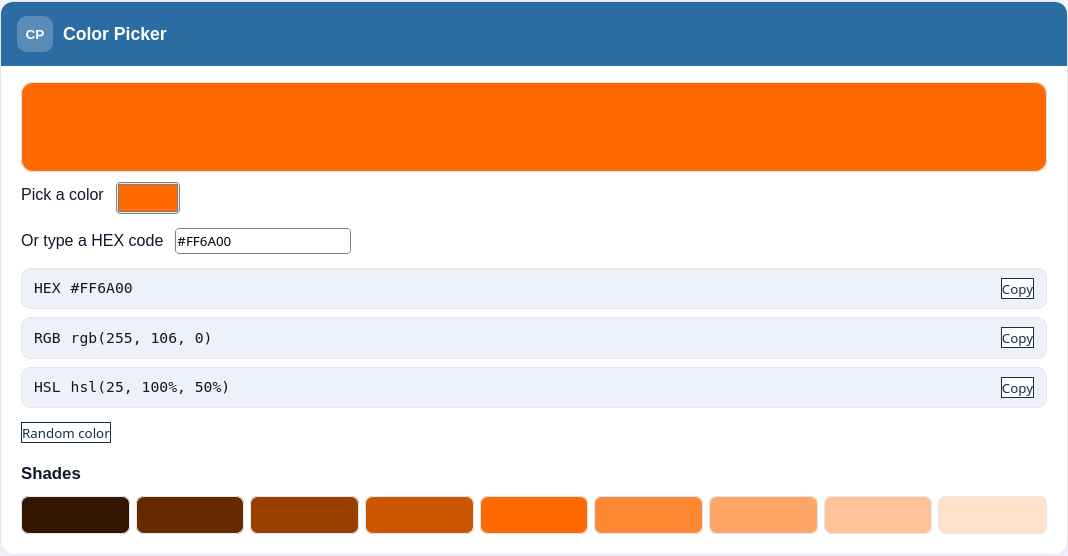
| Orange | #FF6A00 | rgb(255, 106, 0) | hsl(25, 100%, 50%) |
| Green | #3E7C59 | rgb(62, 124, 89) | hsl(146, 33%, 36%) |
| Default on load | #3498DB | rgb(52, 152, 219) | hsl(204, 70%, 53%) |
The navy, #12304A, is the darkest of the four at 18% lightness, and its shades row shows the full range in nine steps: #040A0F, #07131E, #0B1D2C, #0E263B, #12304A itself in the middle, then #41596E, #718392, #A0ACB7 and #D0D6DB. Clicking the lighter shade #718392 — the step two places above the base colour — set the picker to exactly that colour, showing rgb(113, 131, 146) and hsl(207, 13%, 51%). The copy check worked too: clicking Copy next to HEX for the navy changed the button to “Copied!” and the clipboard held #12304A, ready to paste.
The orange, #FF6A00, is the most saturated of the four at 100% saturation and 50% lightness, and its nine shades run from #331500 up to #FFE1CC. The blue, #2B6CA3, showed rgb(43, 108, 163) and hsl(207, 58%, 40%), and the green, #3E7C59, showed rgb(62, 124, 89) and hsl(146, 33%, 36%). One honest limit: the tool shows HEX, RGB and HSL, but no contrast ratio, so it will not tell you whether white text on a colour is readable — that check is still yours. Typing an invalid code, #ZZZZZZ, simply left the previous colour in place instead of breaking the picker. Clicking “Random color” changed the picker to a new colour at once; in the test run it landed on #5F5371.
HEX vs RGB vs HSL — which one to copy where
The picker shows the same colour three ways because each format fits a different job. HEX is the one to copy most of the time: a single compact code, #12304A, that pastes straight into CSS, Canva, Figma and most design tools, and is easy to keep in a notes file. RGB is the format to use when a tool asks for the three channels separately, or when you need transparency — rgb(18, 48, 74) becomes rgba(18, 48, 74, 0.5) for a half-transparent navy. HSL is the format for adjusting by eye: the three numbers mean hue, saturation and lightness, so raising the lightness of the navy from 18% lightens it without changing its basic blue, while editing the RGB channels one by one usually shifts the hue as well.
A quick way to remember it: copy HEX to record and share an exact colour, copy RGB when the tool or the code wants channels or opacity, and switch to HSL when you are still deciding how light, dark or vivid the colour should be. The shades row under the picker does the HSL thinking for you — it is nine ready-made lighter and darker versions of the colour you already have, so you rarely need to adjust a value by hand at all.
Practical tips
- Work in HSL when adjusting a colour by eye. Raising or lowering lightness keeps the hue recognisable, while editing RGB channels often shifts the colour unexpectedly.
- Copy values instead of retyping them. A single mistyped HEX digit changes the colour completely, and the error is hard to spot.
- Check text contrast before finalising. This picker does not display a contrast ratio, so a beautiful shade that makes white text unreadable will fail on a real poster or page — test the pairing where it will actually be used.
- Use shades from one palette for backgrounds, borders, and highlights. Related shades look intentional; unrelated near-matches look accidental.
- Save the HEX codes you use for a brand in one note. Reusing exact codes is what keeps future posts matching the first ones.
Frequently asked questions
How do I copy a color value?
Click the "Copy" button next to HEX, RGB or HSL. The value is copied to your clipboard instantly, ready to paste anywhere.
What is the difference between HEX, RGB and HSL?
HEX is a compact 6-digit code like #3498DB. RGB defines a color by its red, green and blue amounts (0–255 each). HSL describes it by hue, saturation and lightness, which is easier to adjust by eye.
Is this color picker free?
Yes — completely free, no sign-up needed.
Can I use these colors in my design tools?
Yes. HEX, RGB and HSL values work in every design tool — Photoshop, Canva, Figma, web code and more.
How do I convert HEX to RGB by hand?
Split the six HEX digits into three pairs, one per channel, and convert each pair from base sixteen to decimal. For #3498DB, 34 becomes 52, 98 becomes 152, and DB becomes 219, giving rgb(52, 152, 219). The picker does this instantly, but the method helps when checking a value.
When should I use HSL instead of HEX?
Use HSL when you want to adjust a colour, for example to make it lighter, darker, or less saturated, while keeping its basic hue. HEX is better for recording and sharing an exact colour, since it is a single compact code.
Why does the same HEX code look different on two screens?
Screens differ in brightness, calibration, and colour settings, so an exact code can still appear slightly different from phone to laptop. The code itself is identical; only the display changes. Check important colours on the device your audience will use.
Can I pick a colour from a photo with this tool?
No, this picker works from the colour control or a typed HEX code, not from sampling a photo. If you need a colour from an image, find its HEX code in an image editor first, then type that code here to get its RGB and HSL values.